Guides · Discount codes
How to track Shopify discount codes by new vs returning customers
A welcome code that mostly goes to repeat customers isn't bringing in new ones. A loyalty code that mostly goes to first-time buyers isn't rewarding loyalty. Here are three ways to check who your codes actually reach, without installing anything.
Why new vs returning matters
Every discount code has a job. Splitting its orders by new and returning customers tells you whether it's doing that job:
| Type of code | What you'd hope to see | Worth a closer look if… |
|---|---|---|
| Welcome / first order | Almost all new customers | Returning customers use it too |
| Influencer or affiliate | Mostly new customers | Mostly returning customers, or a burst of new ones long after the post |
| Loyalty or VIP | Returning customers | They were buying at full price anyway |
| Win-back | Returning customers who had gone quiet | Recent, active customers use it |
| Sitewide sale | A mix, with new customers you wouldn't otherwise get | Nearly all returning customers |
Method 1: one code, in Shopify Analytics
Shopify Analytics lets you write short queries in ShopifyQL, Shopify's reporting language. In your admin, open Analytics, start a new exploration and open the ShopifyQL editor. Paste this, change the code, and run it:
FROM sales
SHOW orders, total_sales, customers
WHERE discount_code = 'WELCOME10'
GROUP BY new_or_returning_customer
SINCE -365d UNTIL today
You get two rows, New and Returning, with the orders, sales and customers for each. Shopify counts an order as New when it's the customer's very first purchase, and Returning when they'd bought from you before.
Method 2: every code at once
To compare all your codes in one table, use Shopify's first-time and returning order metrics:
FROM sales
SHOW orders, orders_first_time, orders_returning, discounts
WHERE discount_code IS NOT NULL
GROUP BY discount_code
SINCE -90d UNTIL today
ORDER BY orders DESC
Divide orders_first_time by orders for each row to get the share of a code's orders that came from new customers. Change -90d to cover the period you care about, for example your last big sale.
If you let discounts combine, an order with two codes appears under both. Keep that in mind when you add rows together.
Method 3: from your orders export, in a spreadsheet
If you'd rather work in a spreadsheet, or want to check the numbers another way:
- In Orders, click Export, choose a date range and pick the CSV format.
- Open the file in Google Sheets or Excel. Orders with several products take several rows; filter out rows where Created at is empty so each order appears once.
- Sort by Created at, oldest first.
- Add a column called Earlier orders. If email is in column B, put this in row 2 and fill it down:
A result of 0 means it's the customer's first order in the file.=COUNTIF(B$2:B2, B2) - 1 - Create a pivot table with Discount Code as rows, and count orders where Earlier orders is 0 against the total.
Two things to watch: orders without an email address can't be matched, and customers who ordered before your export's start date will look new. Export as much history as you can.
Or skip the spreadsheet: the free Discount Code Checker does all of this in your browser. Drop in the same export and it shows, for every code, the share of first-time buyers and of customers who had recently paid full price.
Where new vs returning falls short
New vs returning is a good first check, but "returning" is a wide bucket. It includes:
- A customer who last bought two years ago
- A customer who only ever buys when there's a code
- A loyal customer who paid full price last week
Only the last group is a real risk of discount waste: they were already buying at full price, so the code may have given away margin on an order you'd have had anyway. The more useful split for returning customers is had they paid full price recently?
What to do next
- Welcome code reaching returning customers: limit it to customers with no previous orders in the discount's eligibility settings, or make it single-use per customer.
- Influencer code with few new customers: compare codes across influencers before renewing deals, and check whether the code has spread beyond their audience.
- Loyalty code used by recent full-price buyers: test a smaller offer for part of that group and watch whether their orders change.
Order history shows who used a code, not what the code caused. Treat any of these splits as a reason to test, not as proof.
Related: What Shopify's "Sales by discount codes" report doesn't tell you · How to tell if your discount code leaked
See every code split by customer type, automatically
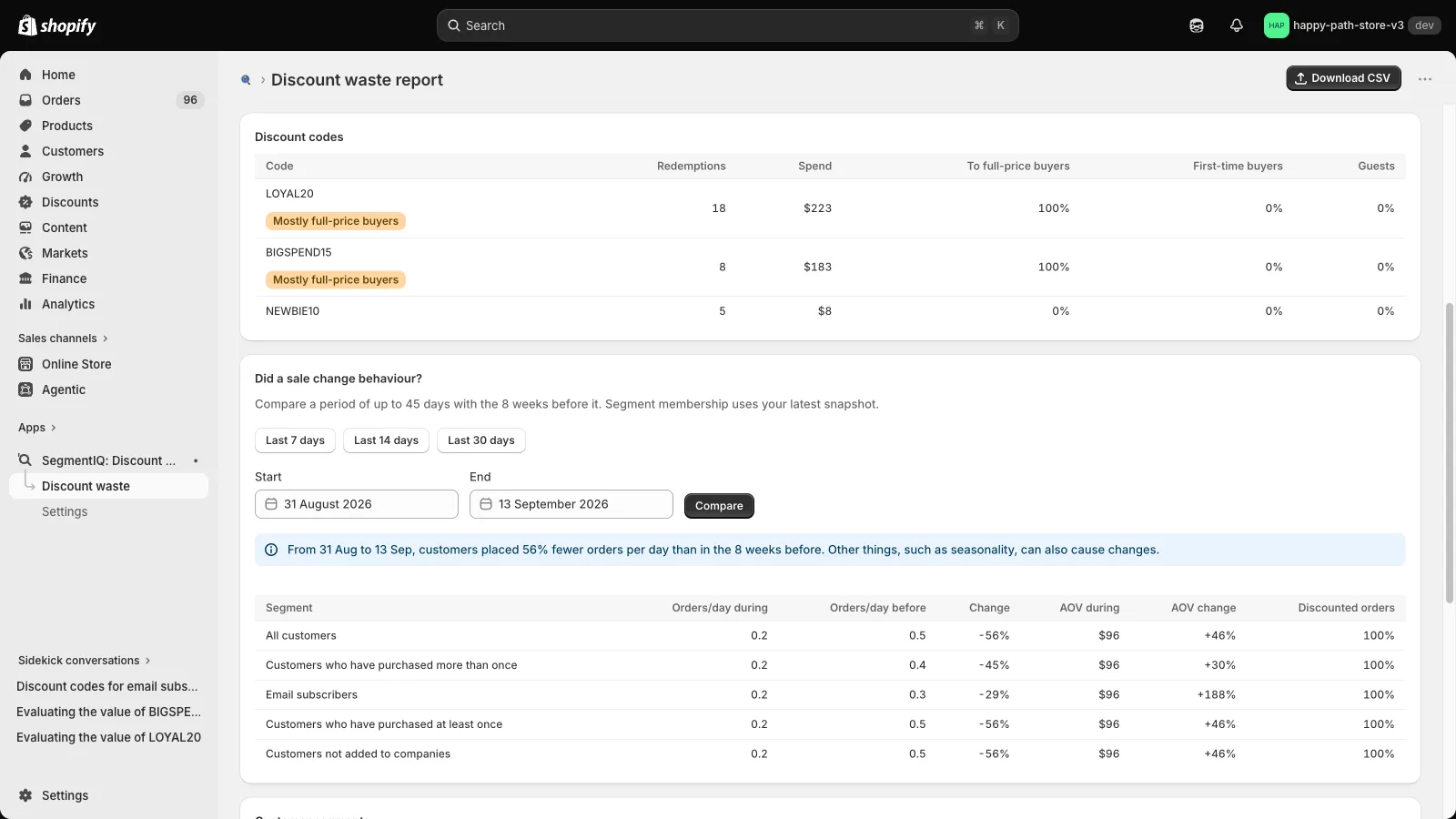
SegmentIQ shows, for every discount code and customer segment, how much went to recent full-price buyers and first-time buyers. Read-only, with a free plan.
Install SegmentIQ free